


Demo Improvements
Various improvements for demo recording and playback.
Demo Player #
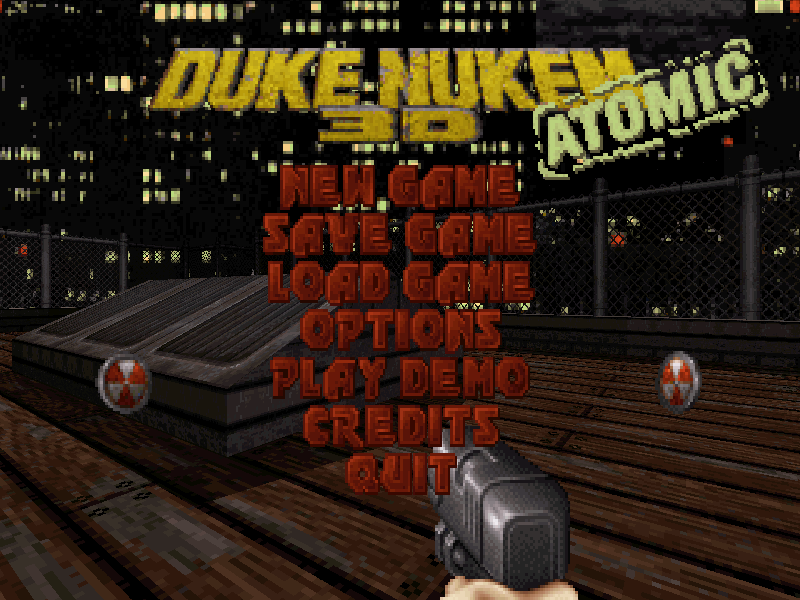
A fully featured demo player has been implemented in-game and can be accessed via the main menu under the new
PLAY DEMOoption.
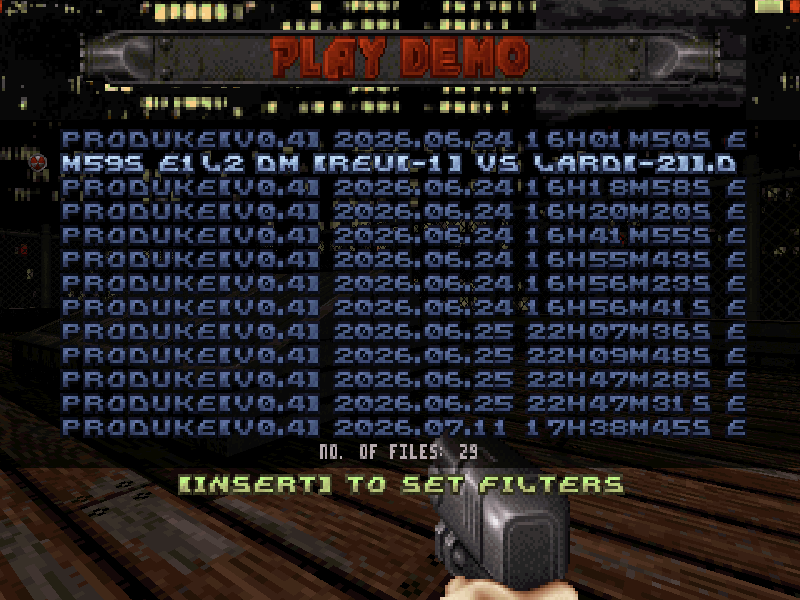
 The game will list all demos in proDuke's demo folder.
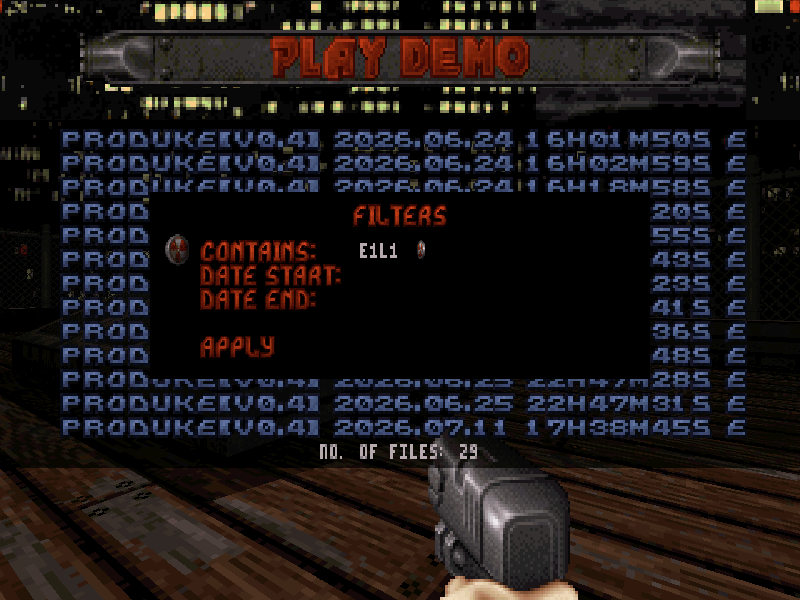
 You can filter demos by pressing
 INSERT. Press
DELETEto clean filters and
F5to refresh the listing.
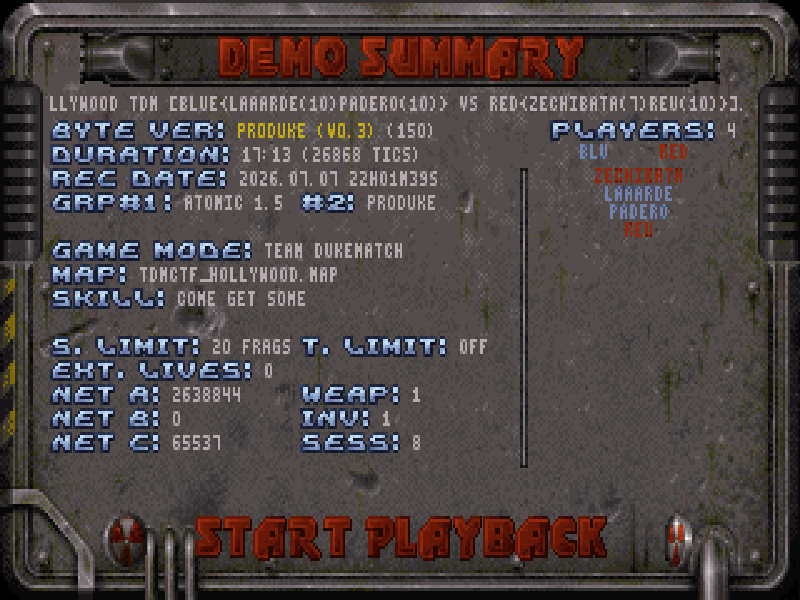
 After selecting a demo on the list, a summary will be shown with all details of the match.
 After selecting playback, the demo will start as paused. From here, a player will be shown on top of the screen with the current status of the demo playback.
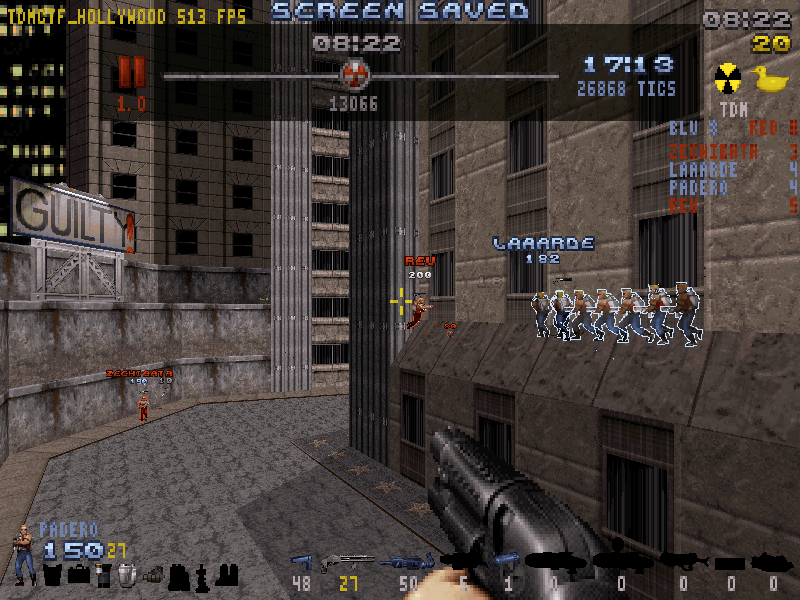 It's possible to play, pause, advance and return one tic, speed up and speed down the playback and even jump to a specific tic.
 There is a new menu at
Options > Recording Setup > Playback Options > Demo Player Hotkeyswhere you can set the demo playback controls keybindings. When the player is hidden, an icon will be shown at the top right corner indicating the current playback state.
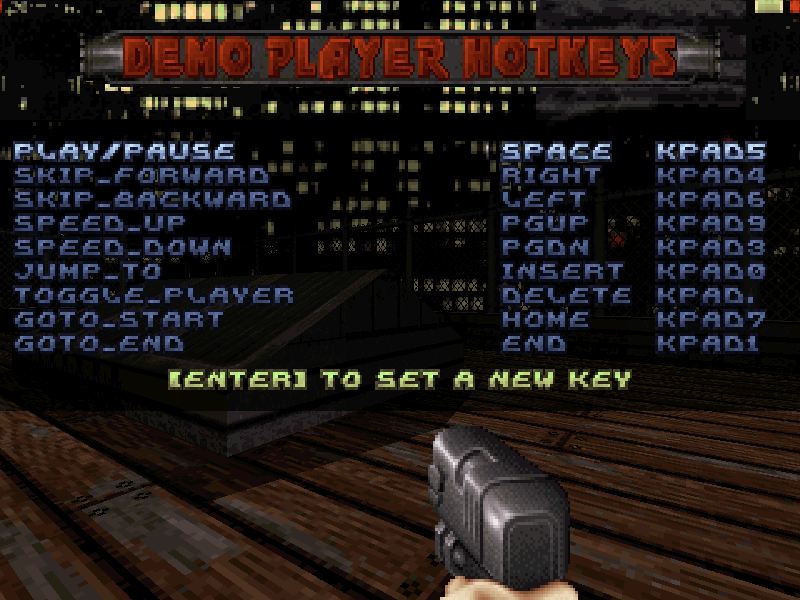 Here is what each icon means and their default key:


Demo Autorecord #
You can configure the game to always record demos through the new menu
Options > Recording Setup > Record. There are 4 options:
| OPTION | DESCRIPTION |
|---|---|
| OFF | Never record demos. |
| ONCE | Records only one match and then goes back to OFF. |
| ALWAYS | Always records all matches. |
| NETPLAY ONLY | Records only online matches. |
Open Demos With proDuke #
Now you can open a DMO file with produke.exe by either double clicking or drag-dropping. Check the configuration guide.
Chat and RTS Saved on Demos #
Now chats, macros and RTS will be saved inside .DMO files and be reproduced during playback. You can disable chat playback through the menu
Options > Recording Setup > Playback Options > Chat/Macro Messages.. You can disable RTS playback through the menu
Options > Recording Setup > Playback Options > RTS Sounds..
Record After Map Change #
Now the game starts recoding a new demo if the map is changed through the multiplayer menu or after pressing the nuke button.
Coop Demos #
Now demos will be compatile with coop matches, they will record each players' weapon, ammo and inventory from the last level.
Usermap CRC on Demos #
Now the game saves the map CRC inside of the demo file to prevent usermap name conflicts.
Demo Cams #
This feature was disabled in xDuke, it was restored. The game will use SE 27 (Demo Cam) to shift current player view when watching demos. You can enable this in the new menu
Options > Recording Setup > Playback Options.
Demo Outlines #
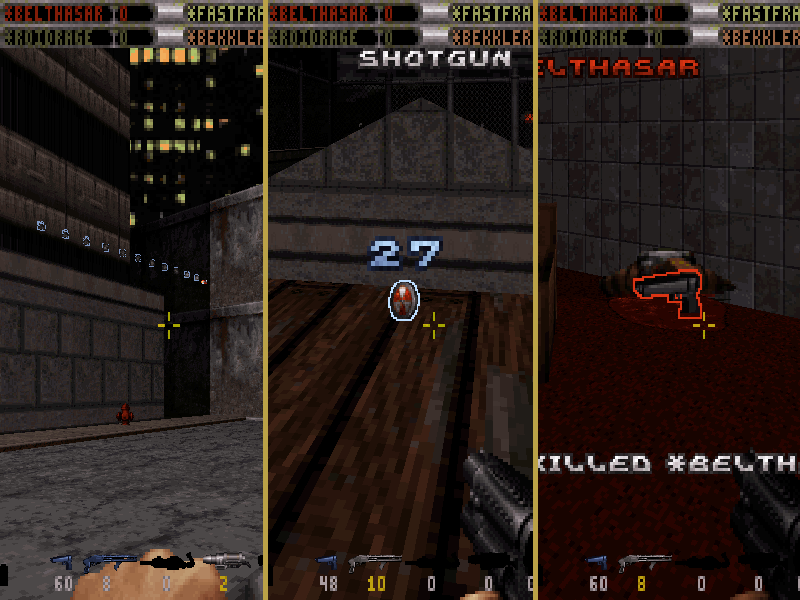
You can force enable outlines, overhead info and damage numbers when watching demos (even if that match didn't use it). Through the new menu
Options > Recording Setup > Playback Options. If outlines are forced, the game will also draw outlines on projectiles, dropped weapons, holodukes and items markers. Holoduke outlines blink to distinguish from real players. And for marker, the outline color will be corresponding to the last player who picked the item. And if overhead info is also forced, a counter will be shown above the marker.
Demo Extra Data #
Newer demos will now have additional metadata: final player/team scores, obituaries, announcer events and the moment of out of sync, if that happens.
Record Demo After Crash #
Implemented various checks so the demo may still be written correctly in case of a crash or unexpected closing.
Video Recorder #
There's now a Headless AVI Capture mode in proDuke, which is perfect if you want to batch generate videos of your matches to upload to youtube or somewhere else. Given a .dmo file, it will generate a corresponding .avi file. The match is recorded at non-live time and without having to display the match on your screen. The recording time is usually faster than the watch time, but that depends on your PC specs as well as the current video resolution.
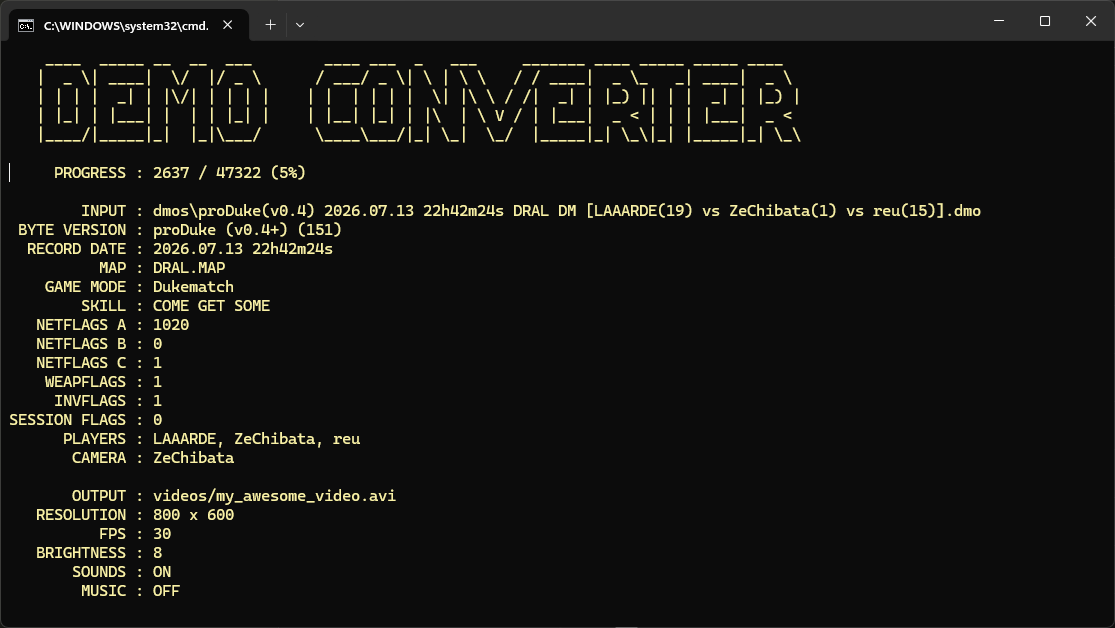 To run the video recorder, use the following command line:
produke.exe -demo "my_demo.dmo" -video "my_video.avi" -camera #
Where # is the number of the player you want to see.