


HUD Improvements
Various improvements regarding the game HUD to make it less clutered and more intuitive.
Obituaries #
Now the game shows who killed who and what weapon was used in the top left corner of the screen. You can configure how many lines are shown at a time or set it back to classic mode in the menu
Options > HUD/Menu Setup > Obituaries.
 There are a few options you can choose:
| MODE | DESCRIPTION |
|---|---|
| CLASSIC | All obituaries are displayed in the center of the screen, like the chat. |
| MODERN,# | All obituaries will be shown at the top left corner of the screen, The # represents the maximum concurrent obituary lines on the screen. |
| HYBRID,# | Like MODERN but this will also display the obituary at the center of the screen when you kill someone or someone kills you (but not when someone else kills someone else). |

New Mini HUD #
New mini HUD that shows all inventory, all weapons, keycards and your current color.
 The weapon colors means:


Lattency Indicators #
The game will show latency indicators in online modes.

 The colored dots indicates how many
 ticsthat player is behind:


30 ticsper second. So a
ticwould translate to about 0.0333 seconds (33.3 miliseconds).
Player Name on HUD #
When peeking on a teammates screen with "see coop view" or when watching a DEMO, the player name will be shown above the health HUD.

Crosshair Selector #
You can change your crosshair in the menu
Options > HUD/Menu Setup > Crosshair. The available crosshair tiles are:


Custom Crosshair #
You can use a custom .ART to customize you crosshair. Check the configuration guide.
In-Game Clock #

A simple clock that shows the current match duration. Displayed at the top right corner of the screen. Can be enabled in the menu
Options > HUD/Menu Setup > Show Clock. In case there's a
time limitset, the clock will be decremental and will be green colored. Otherwise, it will be gray colored. Also, if the
score limitwas also been set, it wil be displayed below the clock as an yellow number.

Scorebar Types #
There is a new scorebar type to free up more screen space.
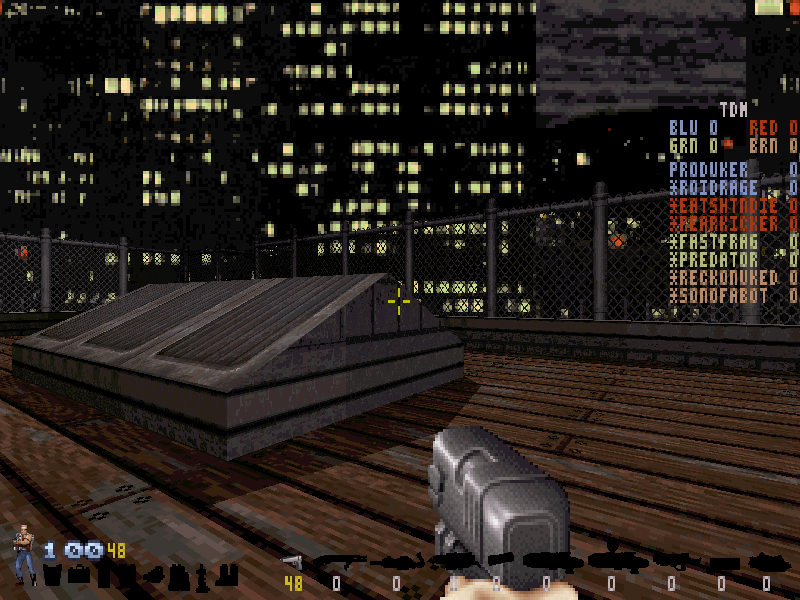 There are a few options you can choose:
| TYPE | DESCRIPTION |
|---|---|
| OFF | Hides the scorebar entirely. |
| CLASSIC | At the top like the original game. |
| MODERN | At the top right corner, without taking up screen space. |
Game Modifier Icons #
The game will display some icons in the top right corner of the screen indicating which game modifiers are active. These can be disabled through the menu
Options > HUD/Menu Setup > Game Modifier Icons. These icons are:
| ICON | DESCRIPTION |
|---|---|

|
Arsenal rebalance. |

|
Exploit mode. |

|
Disabled autoaim. |
Game Feature Icons #
The game will display some icons in the top right corner of the screen indicating which game features are active. These can be disabled through the menu
Options > HUD/Menu Setup > Demo Status Icon. These icons are:
| ICON | DESCRIPTION |
|---|---|

|
Demo recording. |