


Gameplay Improvements
There are various optional features to make general gameplay more fluid.
Player Colors #
You can choose your color in non-team based modes at the menu
Options > Player Setup > Color. You can also set your color using the
COLORconsole command (e.g. typing
COLOR 1or
COLOR BLUEwill set your color to BLUE). Note that you CANNOT change your color for the current match, a match restart is needed for it to take effect, and that is only if the session is not using Lock Players option. If you don't care about custom colors, you can leave your own color set to
Autoand the game will give you the default automatic sequential color, like in the original game. Or, if you really dislike custom colors, you can force the game to show other players with the default automatic sequential colors by enabling
Options > Game Options > Disable Player Colors. Available colors:


Typing And Menu Icon #
An spinning icon will be displayed on top of a player sprite if that player is typing a message or in the menu.
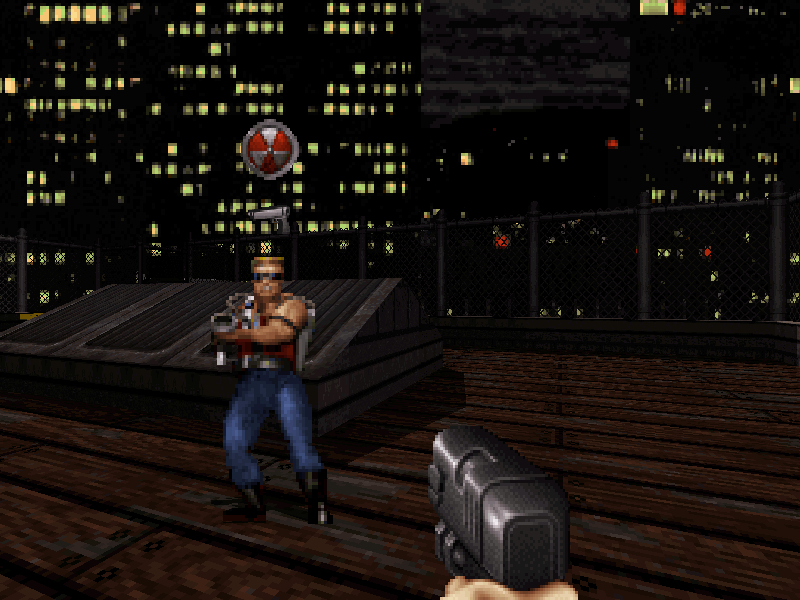 The spinning speed indicates whether the player is typing or in the menu:


New Spycam Modes #
You can set the spycam key between "classic", "toggle" and "held" mode in the
Options > Game Options > Spycam Mode.
| MODE | ORDER | DESCRIPTION |
|---|---|---|
| CLASSIC | Sequential | Original mode, pressing the key will show each teammates' screens, until you get back to your own view again. |
| TOGGLE | Interleaved | In this mode, when pressing the key, you will se a teammate's view, and back to your view when pressing it again. On pressing the key again, you will see the next teammate's view, and so on. |
| HELD | Interleaved | In this mode, while holding the key, you will se a teammate's view, and back to your view when releasing. On holding the key again, you will see the next teammate's view, and so on. |
New Automap Modes #
You can set the automap key between "held" and "toggle" mode in the menu
Options > Game Options > Automap Mode.
| MODE | DESCRIPTION |
|---|---|
| TOGGLE | Just like the original game, you have to press the key multiple times to switch between all automap views. |
| HELD/WIRE | In this mode, while holding the key, the map will be shown (just the lines), and on releasing the key, the map is hidden again. |
| HELD/TEX | In this mode, while holding the key, the map will be shown (with textures), and on releasing the key, the map is hidden again. |
Target Names #
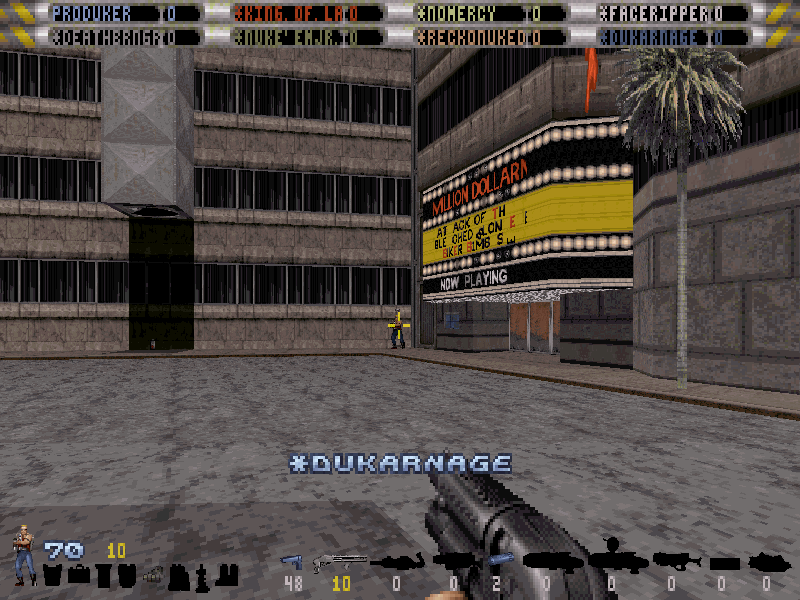
You can see a player's name when aiming at them. You can disable this feature for everyone on the match at the menu
Netplay Options > NetFlags > No Target Names. Or disable it only to yourself at the menu
Options > Game Options > Target Names.
Revealed Automap #
It is possible to make the game start with the whole map already revealed by enabling the netflag
Netplay Options > NetFlags > Revealed Automap.
Always Drop Weapon #
You can make players always drop their weapons when they die by enabling the netflag
Netplay Options > NetFlags > Weapon Always Drops On Kill.
Disable Map Exit #
You can disable the map exit by enabling the netflag
Netplay Options > NetFlags > No Map Exit.
Force Respawn #
You can force players to respawn by enabling the netflag
Netplay Options > NetFlags > Force Respawn.
Respawn Farthest #
You can make the game choose the farthest respawn point from the position where the player died by enabling the netflag
Netplay Options > NetFlags > Farthest Respawn.
Damage Numbers #
You can enable damage numbers through the menu
Netplay Options > NetFlags > Damage Numbers.
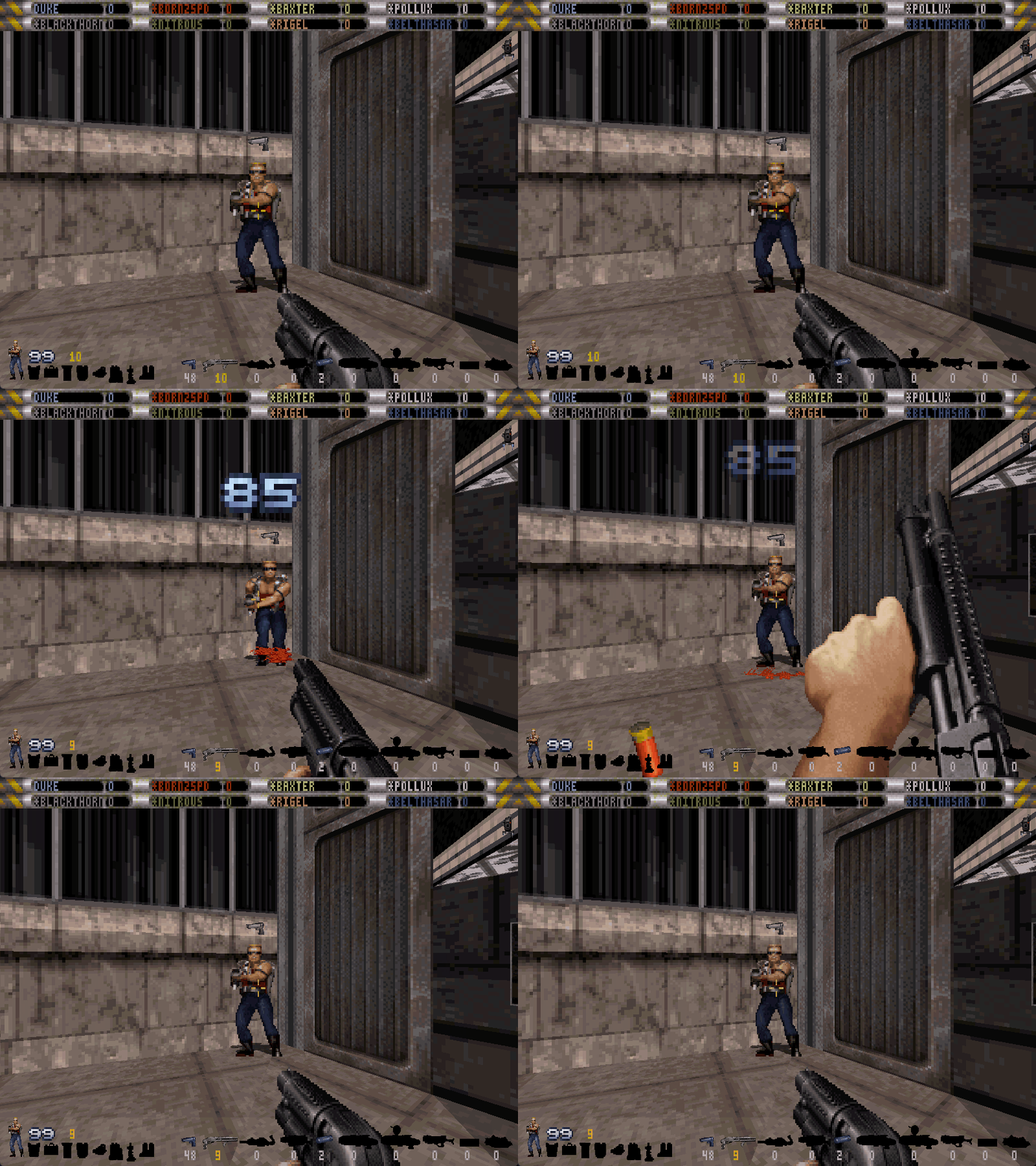 You can configure the font and how the damage is calculated through the menu
 Options > Game Options > Damage Numbers.
| MODE | FONT | COLOR | DESCRIPTION |
|---|---|---|---|
| OFF | --- | --- | Hides damage numbers even if netflag is enabled. |
| MODE 1 | MiniFont | By type | Real inflicted damage (without overkill). |
| MODE 2 | MiniFont | By who fired | Real inflicted damage (without overkill). |
| MODE 3 | MiniFont | By type | Potential raw damage (with overkill). |
| MODE 4 | MiniFont | By who fired | Potential raw damage (with overkill). |
| MODE 5 | GameFont | By type | Real inflicted damage (without overkill). |
| MODE 6 | GameFont | By who fired | Real inflicted damage (without overkill). |
| MODE 7 | GameFont | By type | Potential raw damage (with overkill). |
| MODE 8 | GameFont | By who fired | Potential raw damage (with overkill). |
Score Screen Countdown #
The multiplayer scores screen on the end of a match now has a 5 sec countdown timer, so AFK players can't block a new match from starting.
Show Who Started Match #
The splash screen before a new game (the one saying "ENTERING (map name)") now shows the name of the player that started the new match, if in multiplayer.
Multi RTS #
Support for Multiple RTS files loaded. Each player can have it's own distinct RTS file selected, and for the sound playback the game will load the RTS file by demand. The end result is that everyone will be able to hear the corresponding sounds of the RTS files you choose, even if their curently selected RTS is diferent from yours! Yes, this means that it's possible to, for example, have a sound from DUKE.RTS and SW.RTS playing at the same time! But, of course, all players need to have matching .rts files on the /rts folder. You can select your RTS file through
OPTIONS > PLAYER OPTIONS > REMOTE RIDICULE. The F8 key will also be a shortcut to that. Or, you can use the new "RTS" console command. Make sure to enable the RTS sound playback by setting
OPTIONS > SOUND SETUP > VOICE QUOTESto FULL. Holding the ALT key now shows the sound names of the currently selected RTS file. This can be disabled on the menu
OPTIONS > HUD/MENU SETUP > RTS SOUND NAMES. Check the configuration guide.